
Creating a Custom Enscape Asset
If you’ve ever wanted to bring your own 3D models into Enscape, custom assets are how you do it. This walkthrough covers the whole process from import to placement, using a crane from our Construction Vehicle Kit as the example.
What Is a Custom Enscape Asset?
A custom Enscape Asset is a glTF or OBJ file that you import through the Custom Asset Library. Once it’s in there, you can edit its materials, adjust its size, and set up placeholder geometry so it shows up correctly in both plan and 3D views. It’s a straightforward way to get content into Enscape that isn’t in the default library.
Example Using glTF
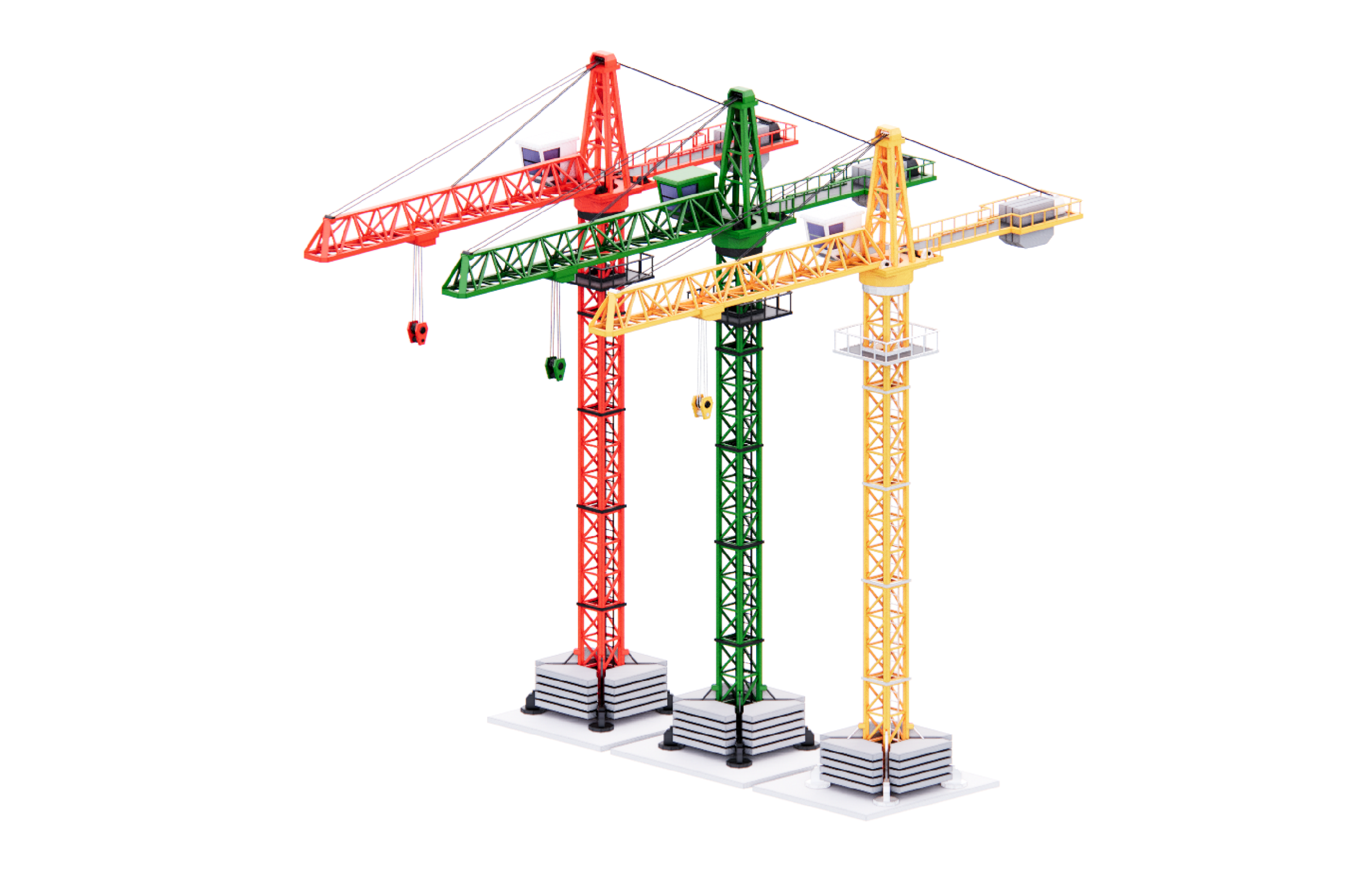
For this example we’re using a glTF file of a construction crane from our Construction Vehicle Kit. The glTF format works great with Enscape and is what we’d recommend if you have the choice. You can find the kit on our website at bimkits.com.
Creating a New Custom Asset
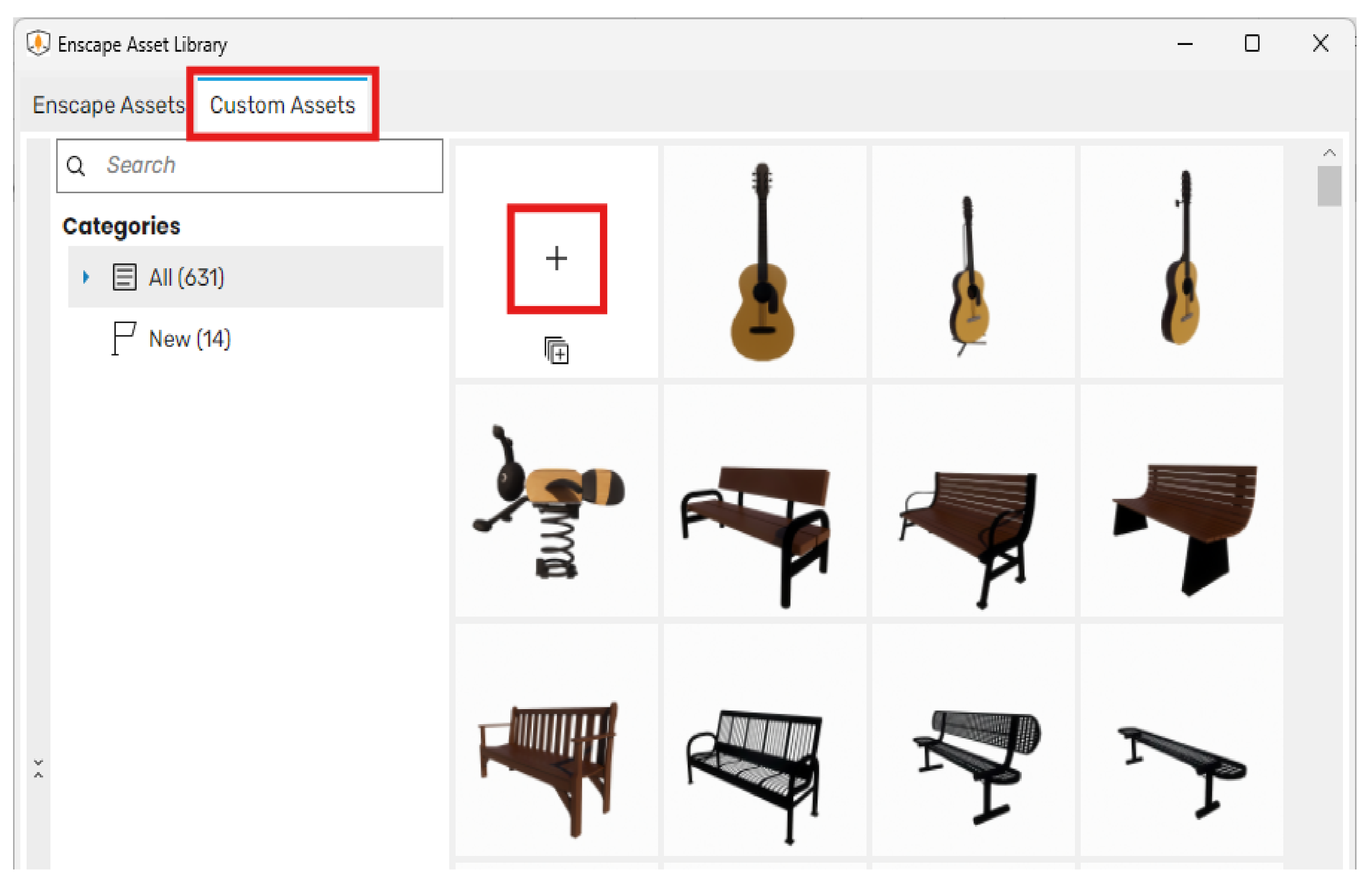
Open the Enscape Asset Library in whatever tool you’re working in. Head over to the Custom Assets tab and click the + button. That’s all it takes to start a new custom asset. From here you’ll be taken into the Asset Editor where the rest of the setup happens.
Importing the glTF into the Asset Editor
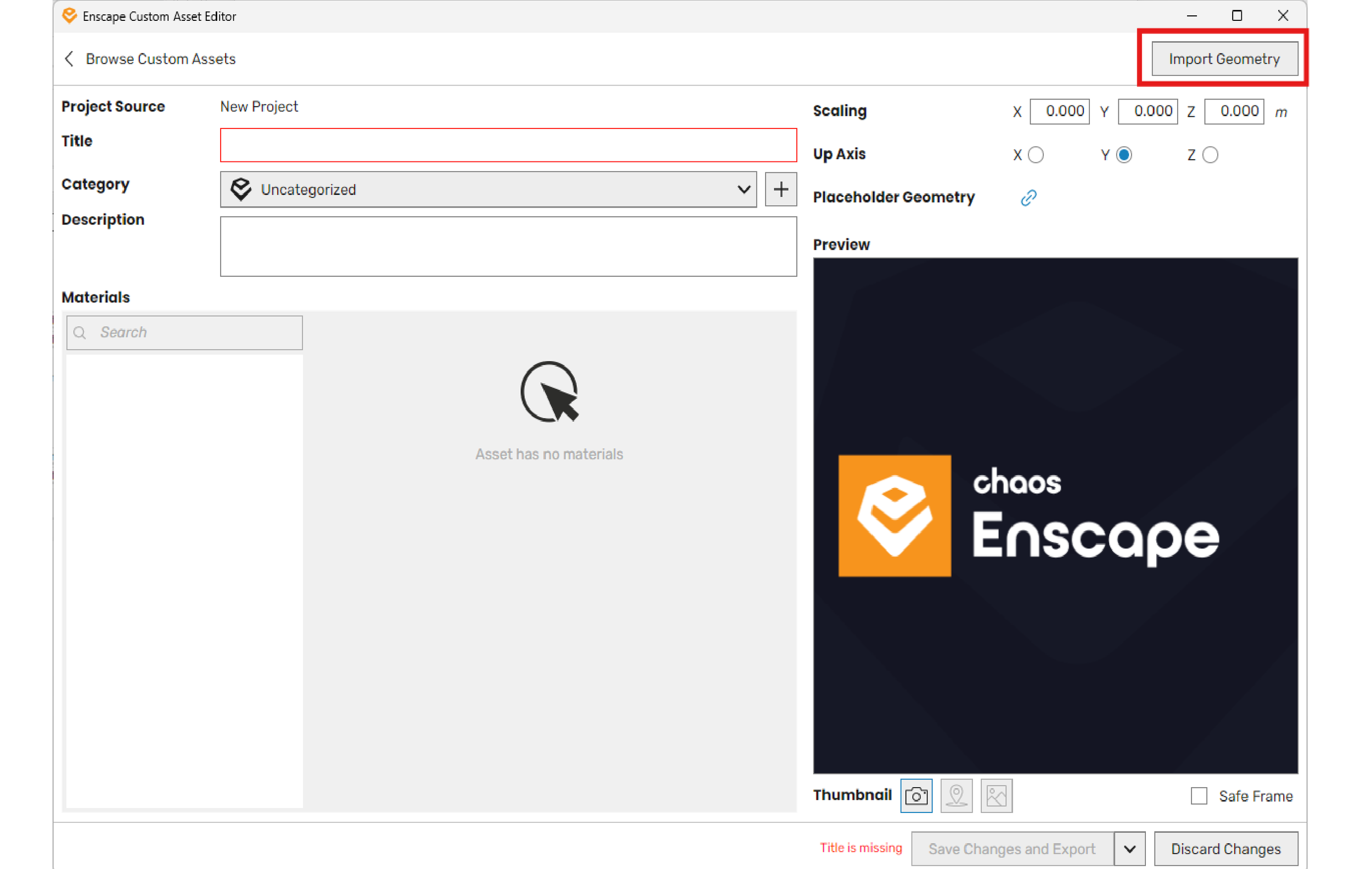
The Asset Editor will open with an empty project. Look for the Import Geometry button in the top right corner, click it, and navigate to wherever your glTF file is saved. Select it and Enscape will pull it in. You’ll see the materials list populate on the left once the file loads.
Placeholder Geometry
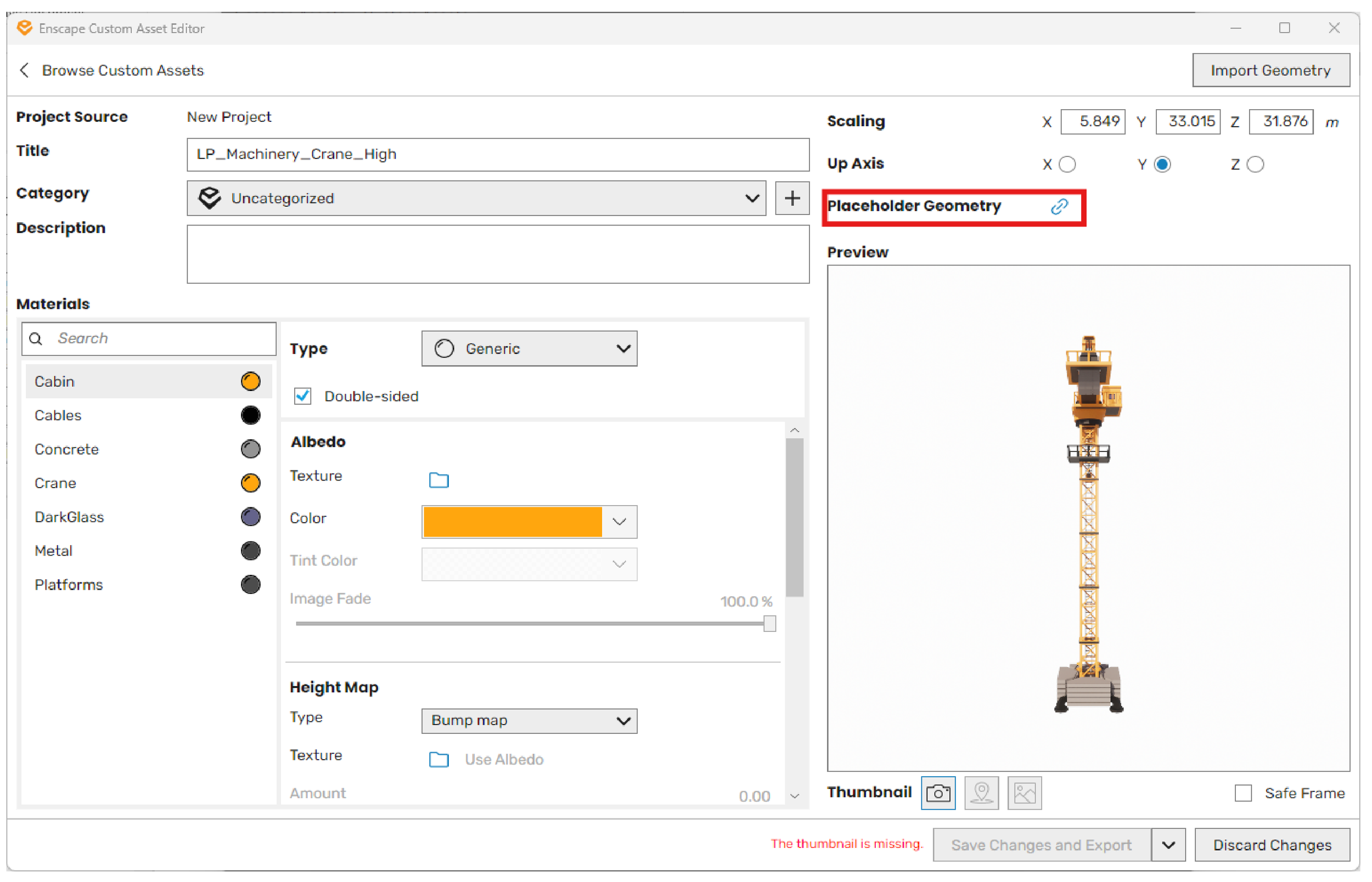
Next to the Placeholder Geometry field you’ll see a small blue link icon. Click it and select the same glTF file you just imported. This tells Enscape what to show in the model view when you’re placing the asset, so you’re not just working with a bounding box. It makes positioning a lot easier.
Customizing Materials
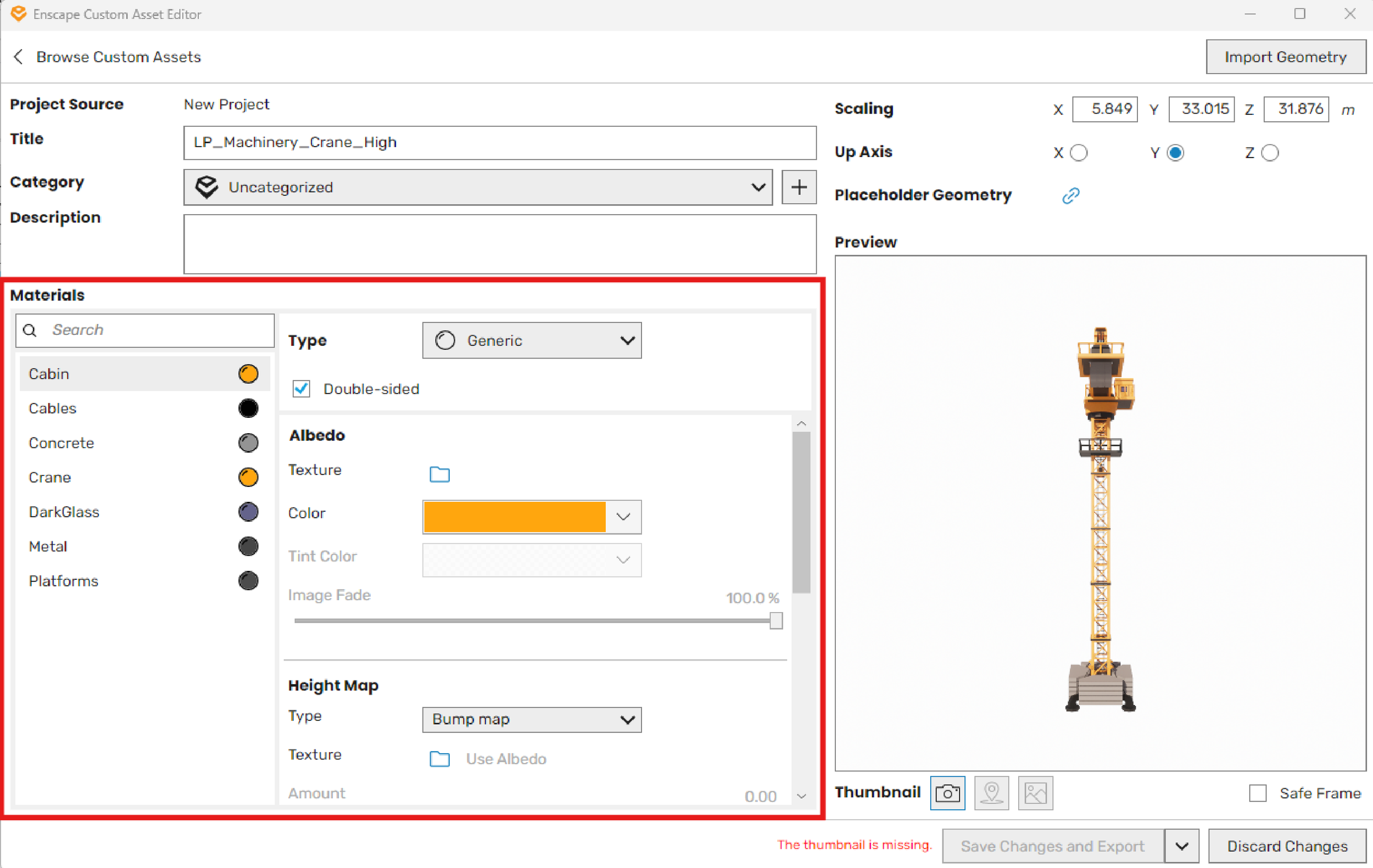
With the geometry loaded you can now preview the asset and start making it your own. Click through the materials list on the left to select individual components and adjust their color, texture, and other properties on the right. This is also where you give the asset a name and assign it to a category so it’s easy to find later.
Thumbnail Snapshot
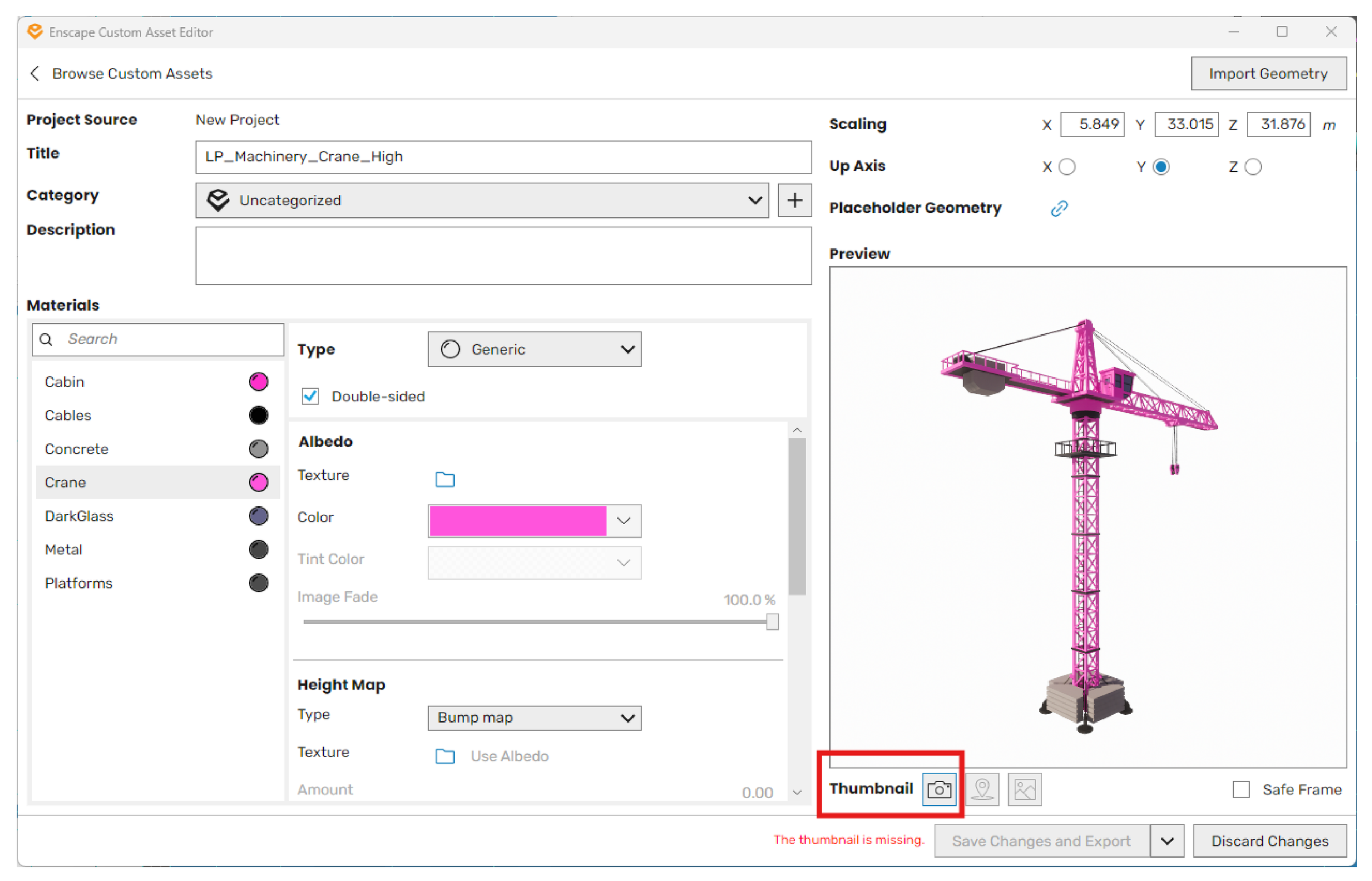
Before you can save and export, the Asset Editor needs a thumbnail. Click inside the preview window to position the asset how you want it to appear in the library, then hit the camera icon next to the Thumbnail label to capture the snapshot. Once that’s done the Save Changes and Export button will become active.
Save Changes and Export
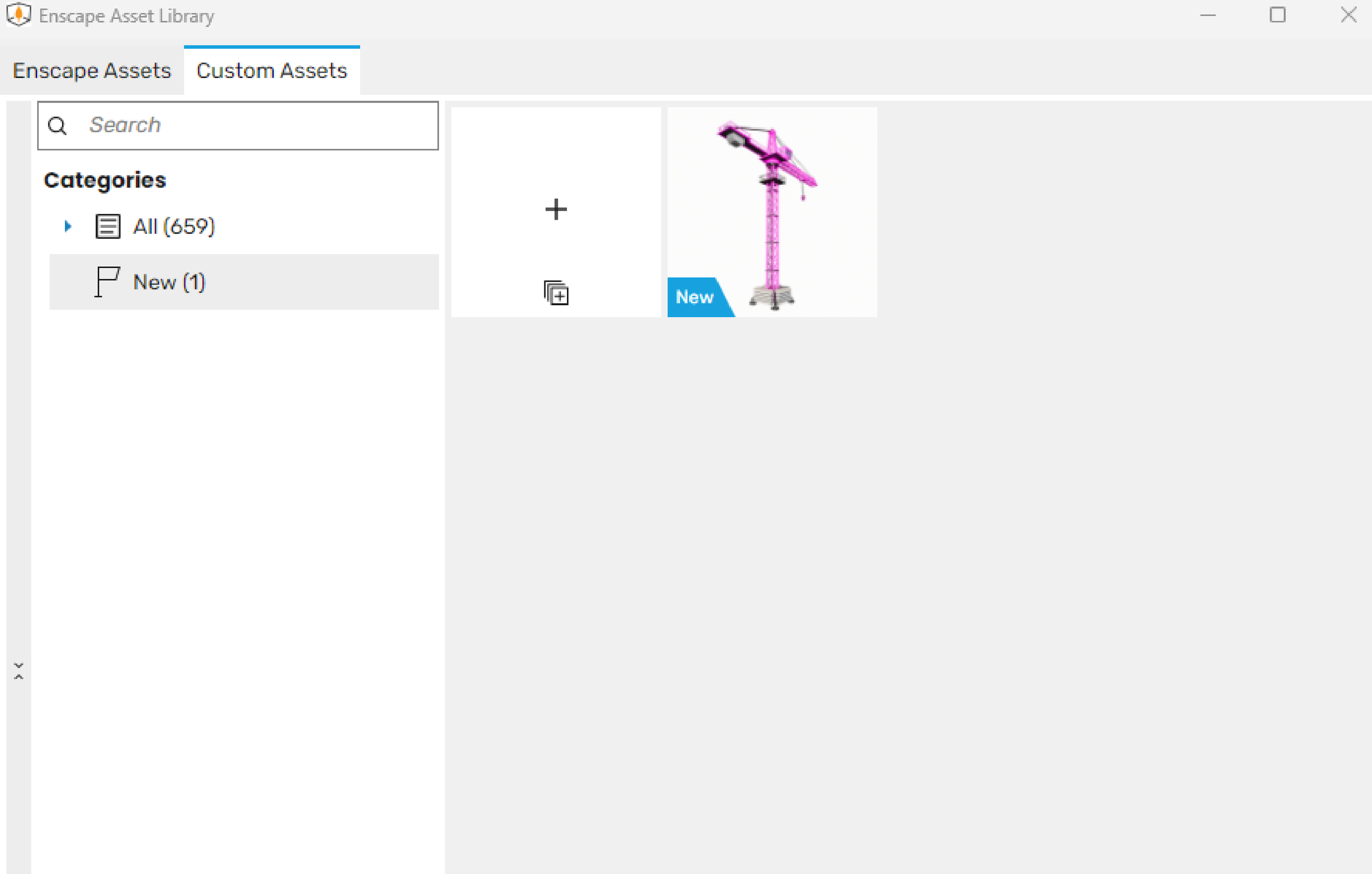
Hit Save Changes and Export and your new asset will land in the Custom Asset Library. The fastest way to find it right after export is to check the New category in the left panel, or just type the name into the search bar. It’ll show up with the thumbnail you just created.
Placing Your New Custom Asset
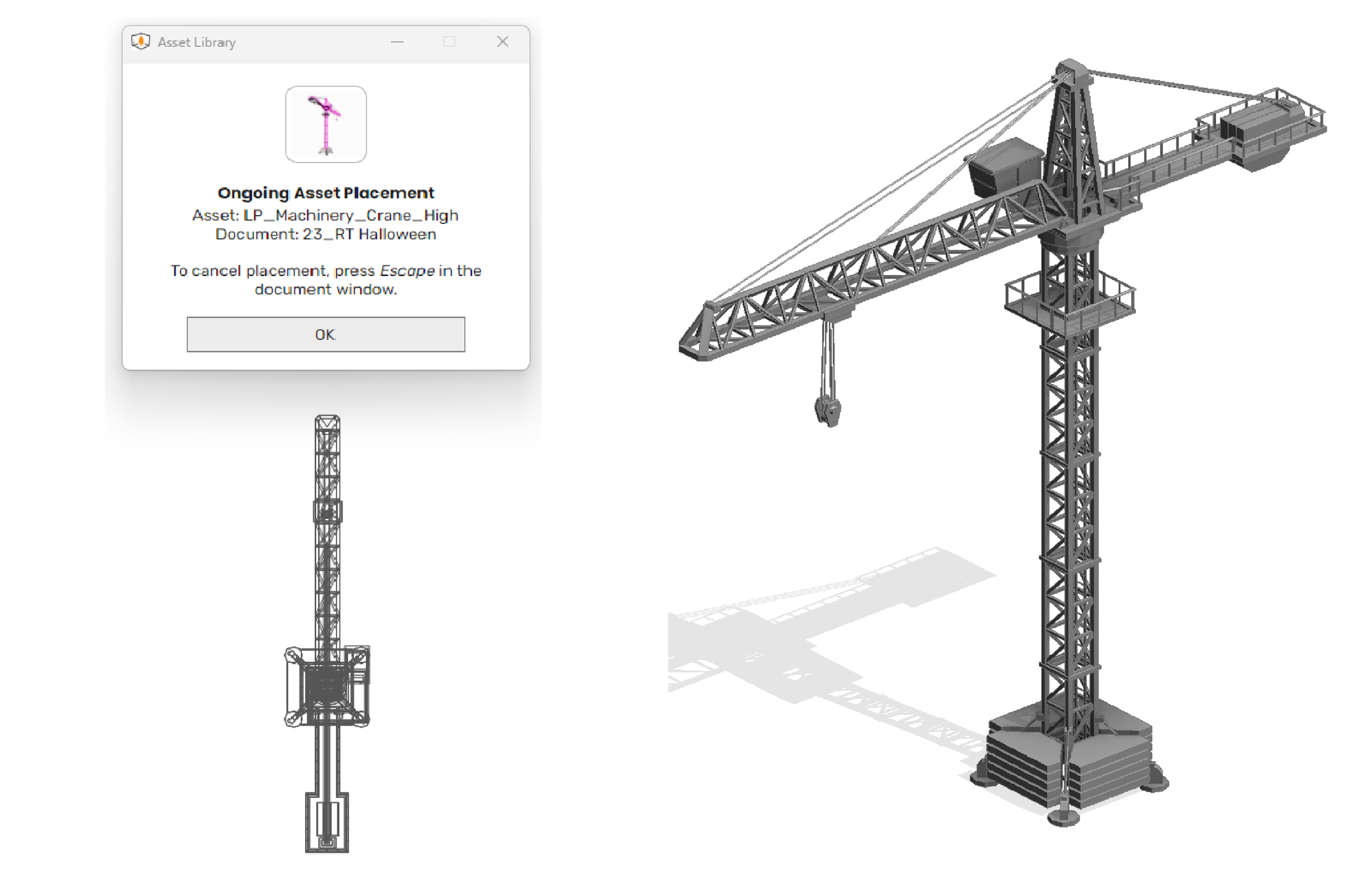
Find your asset in the library and double click it to start placement. You’ll see the placeholder geometry appear in your model so you can position it exactly where you need it, whether you’re working in plan or a 3D view. Hit OK in the placement dialog and you’re good to go.
Using Your New Asset in Enscape
Once the asset is placed and positioned, open Enscape. Your custom asset will show up in the render with all the material changes you made in the editor applied. That’s it. From glTF file to a fully rendered custom asset in Enscape in just a few steps.
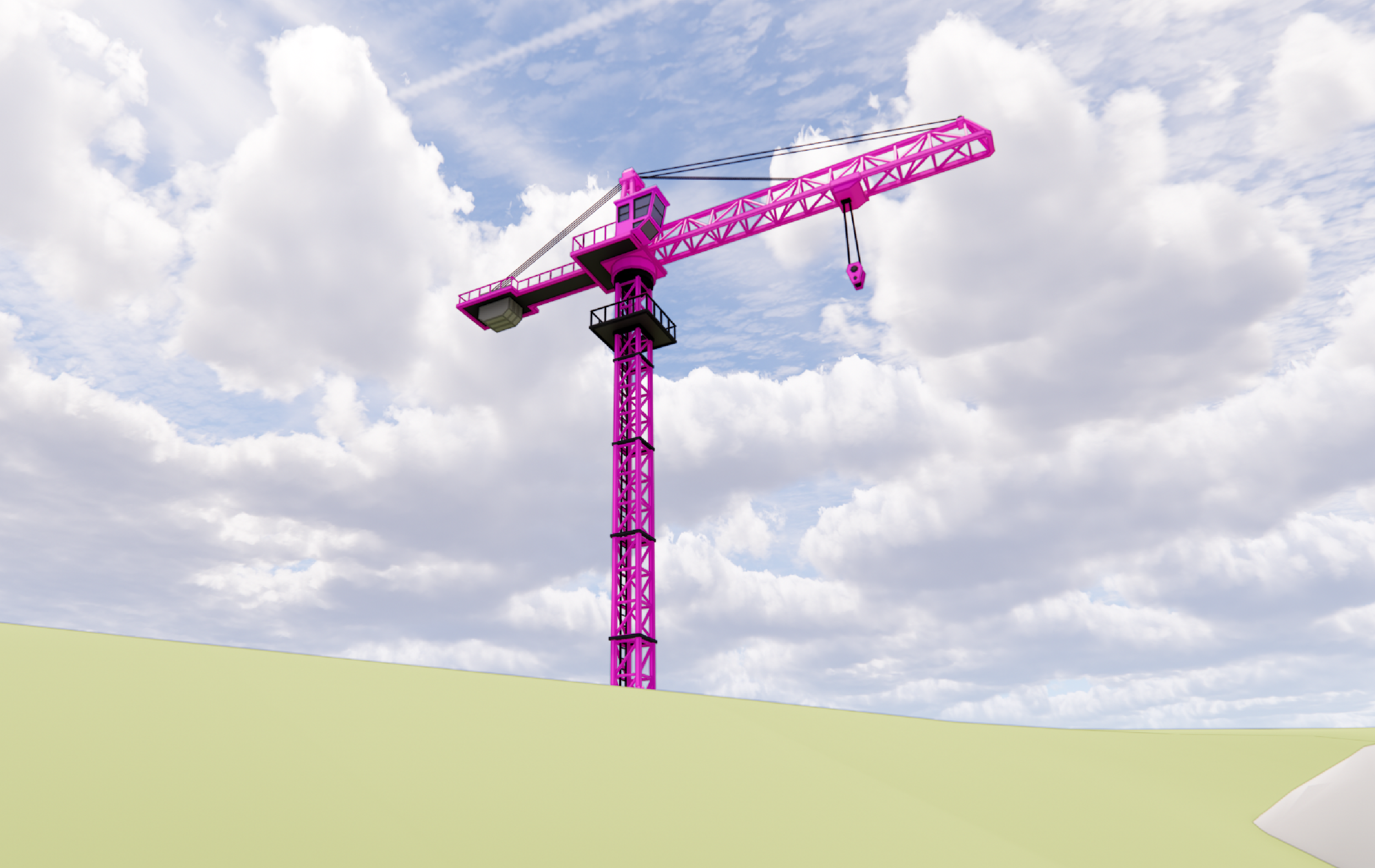
If you want to try giving glTFs a try we have a large library of glTF content that can be found here with many of them being free or at a reduced cost from their Enscape version.
Browse the full library of kits at bimkits.com. Revit Families, Enscape assets, and glTF content built for designers, engineers, and contractors. If you have any questions, comments, or concerns please reach out to us through our FAQ page at bim kits, or send us an email at support@readthomas.com.