Sharing Enscape Assets
If you’ve built up a library of custom Enscape assets and want to pass some along to a colleague or share them with another machine, the process is pretty simple once you know what files are involved. Here’s how to do it in four steps.
Pulling Together the Assets
Each Enscape custom asset is made up of two things: a folder and an .ASSETPKG file. You need both of them to share any given asset. The folder holds the geometry and texture data, and the .ASSETPKG is what Enscape reads to load it into the library. Missing either one and the asset won’t work on the receiving end, so make sure you grab both for each asset you want to share.
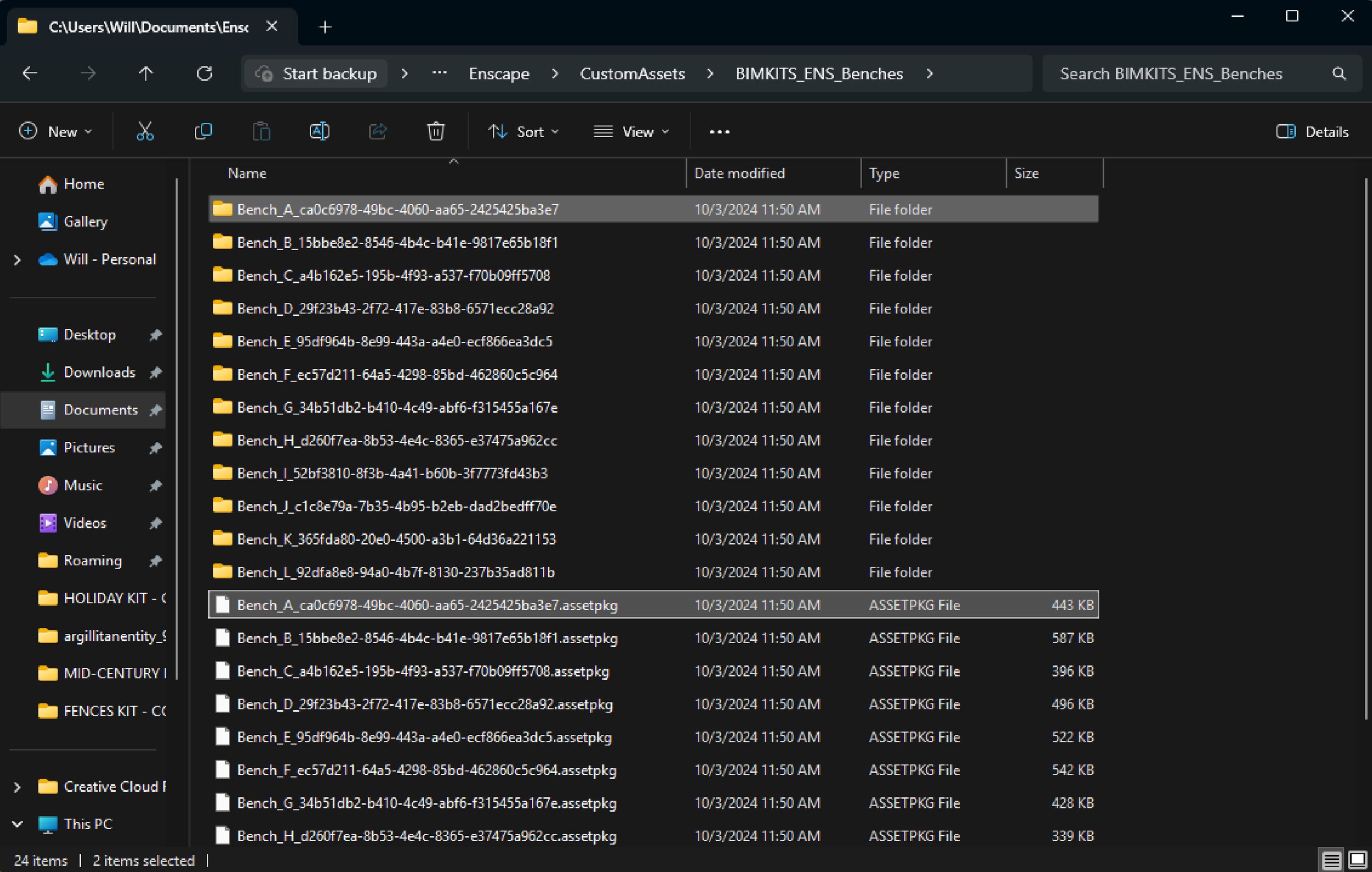
Where to Locate Your Custom Enscape Assets
Open the Enscape Asset Library and switch to the Custom Assets tab. In the bottom right corner there’s a small folder icon. Click it or hover over it and Enscape will show you the full directory path to your Custom Asset folder. That’s where all your asset folders and .ASSETPKG files live. Navigate there in Windows Explorer to start selecting what you want to share.
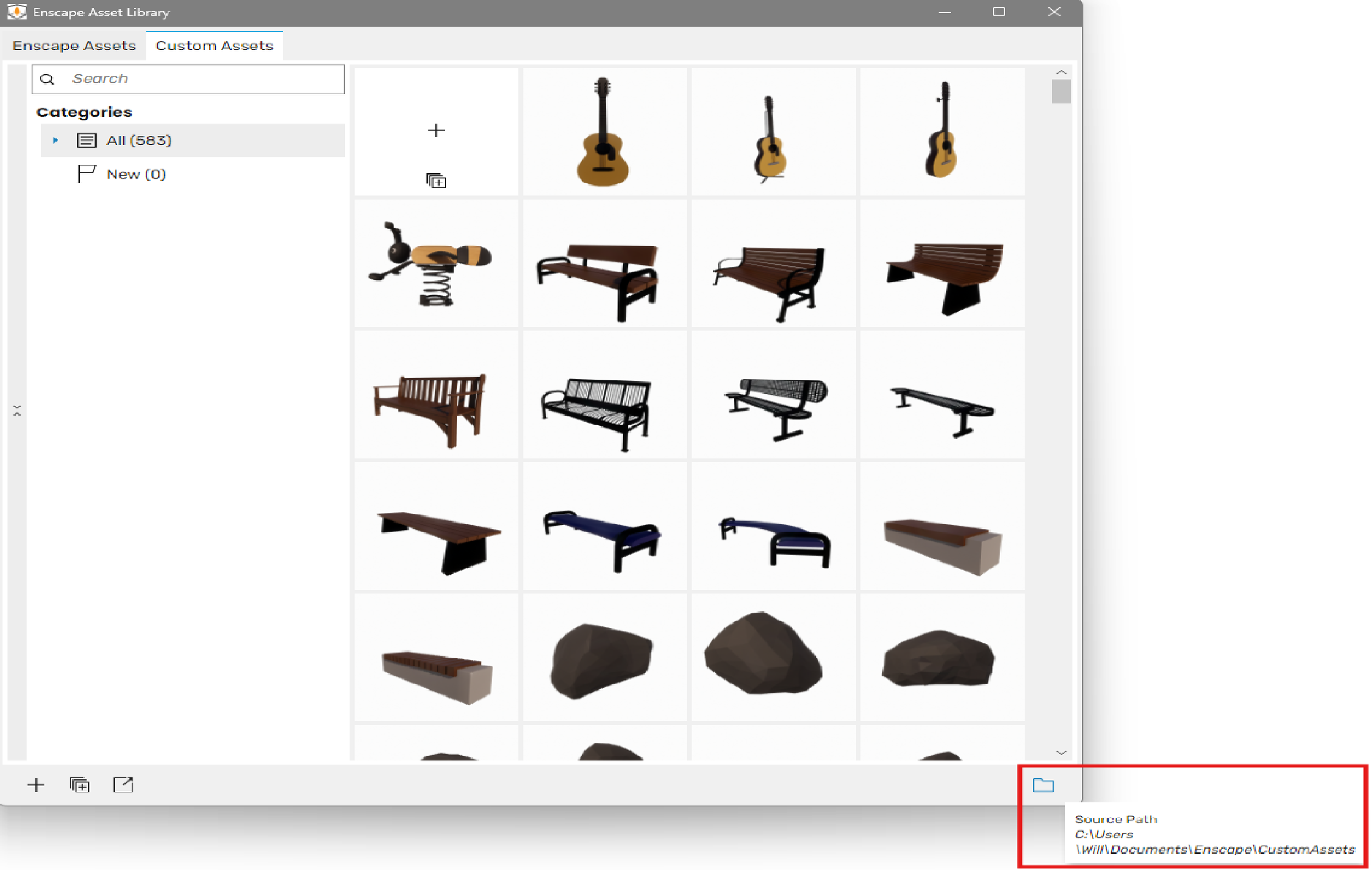
Copy and Paste into a New Location
Create a new folder on your desktop or wherever you want to stage things and give it a clear name, something like ENSCAPE_BENCHES so the recipient knows what they’re getting. Then go into your Custom Asset folder and grab the matching folder and .ASSETPKG file for each asset you want to include. Copy and paste them all into your new named folder. Do this for every asset you’re planning to share.
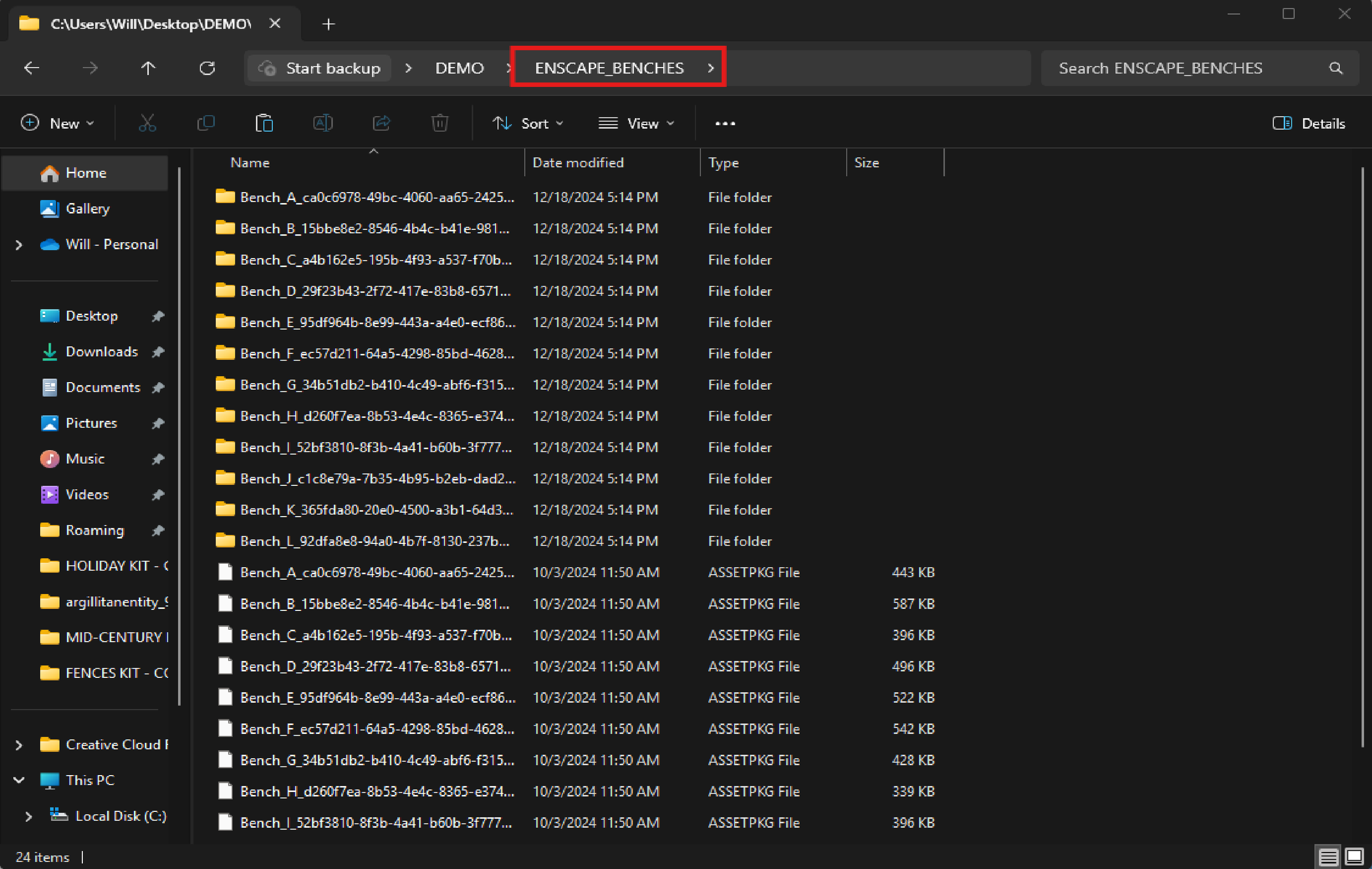
Compressing into a .ZIP
Once all the assets are in the named folder, right click on it and choose "Compress to" then select "ZIP file". That’s it. You now have a single .ZIP ready to send. The person on the receiving end just needs to extract the contents and copy them into their own Custom Asset folder, the same way you’d install any BIM Kits Enscape content.
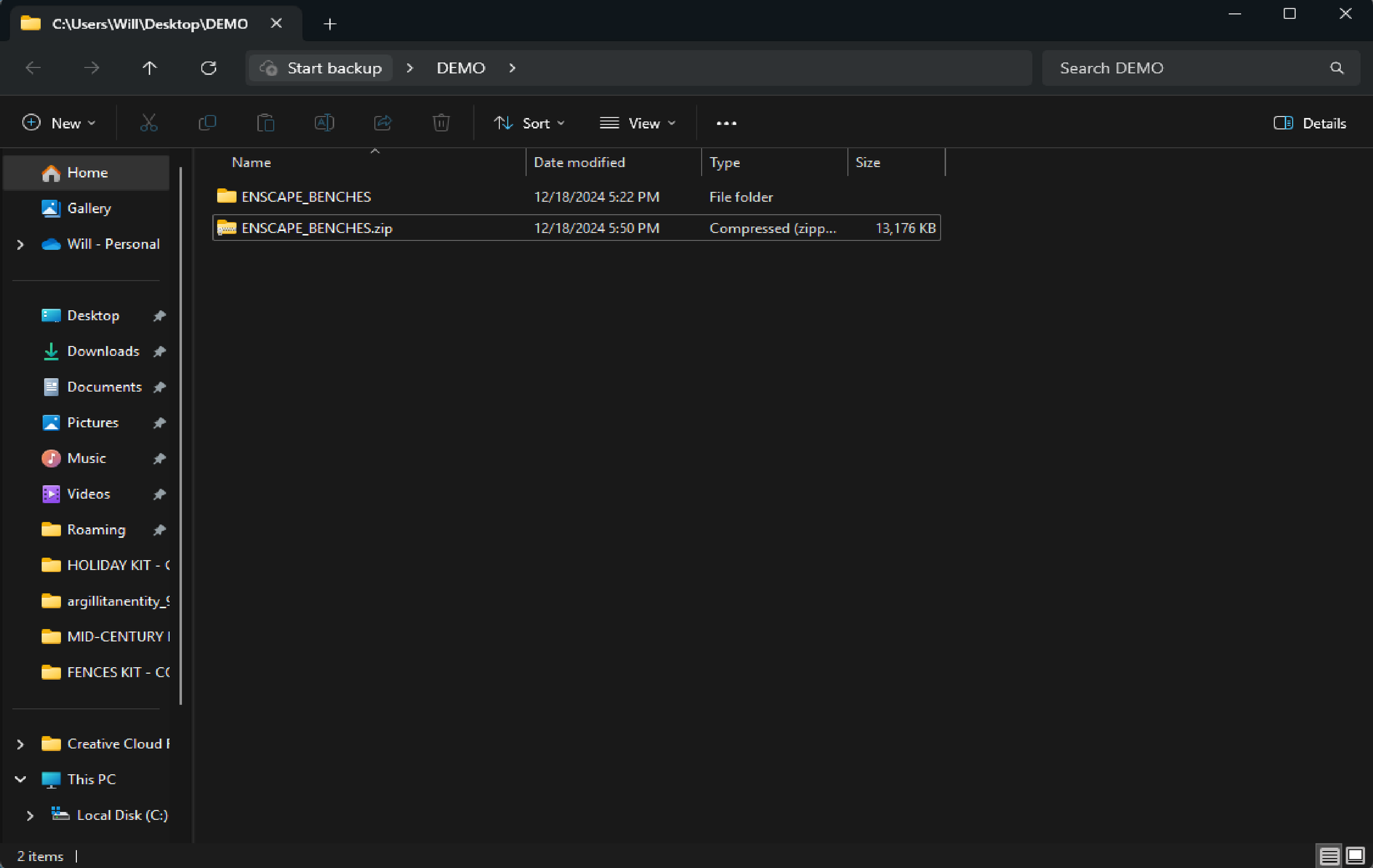
Browse the full library of kits at bimkits.com. Revit Families, Enscape assets, and glTF content built for designers, engineers, and contractors. If you have any questions, comments, or concerns please reach out to us through our FAQ page at bim kits, or send us an email at support@readthomas.com.