How to Use Our Enscape Kits
Getting your BIM Kits Enscape content into your Custom Asset Library is a pretty quick process once you know where everything goes. This post walks through it step by step so you can get from download to your first placed asset without any head scratching. In order to follow along, download the sample file here. This post will be using an example file that can be downloaded from the BIM-Kits home page here.
What You See in an Enscape Kit
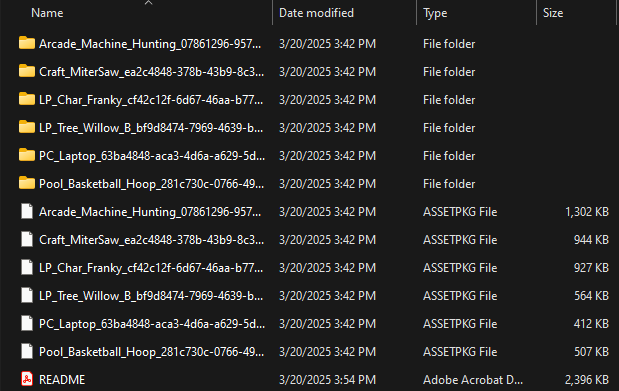
After purchasing an Enscape Kit from bimkits.com, you’ll download a .ZIP file. Inside that ZIP you’ll find two types of files: named folders and .ASSETPKG files, one per asset. The folders contain the supporting geometry and texture files, while the .ASSETPKG files are what Enscape actually reads when loading assets into the library.
How to Use These Files in Enscape
If this is your first time using Enscape Custom Assets, you’ll need to set a folder location where your custom assets will live. Enscape points to this folder whenever it loads the Custom Asset Library, so picking somewhere easy to find on your machine is worth it. Your Documents folder works fine. This is the folder where you’ll be placing the BIM Kits files from the ZIP.

Locating Your Custom Enscape Asset Folder
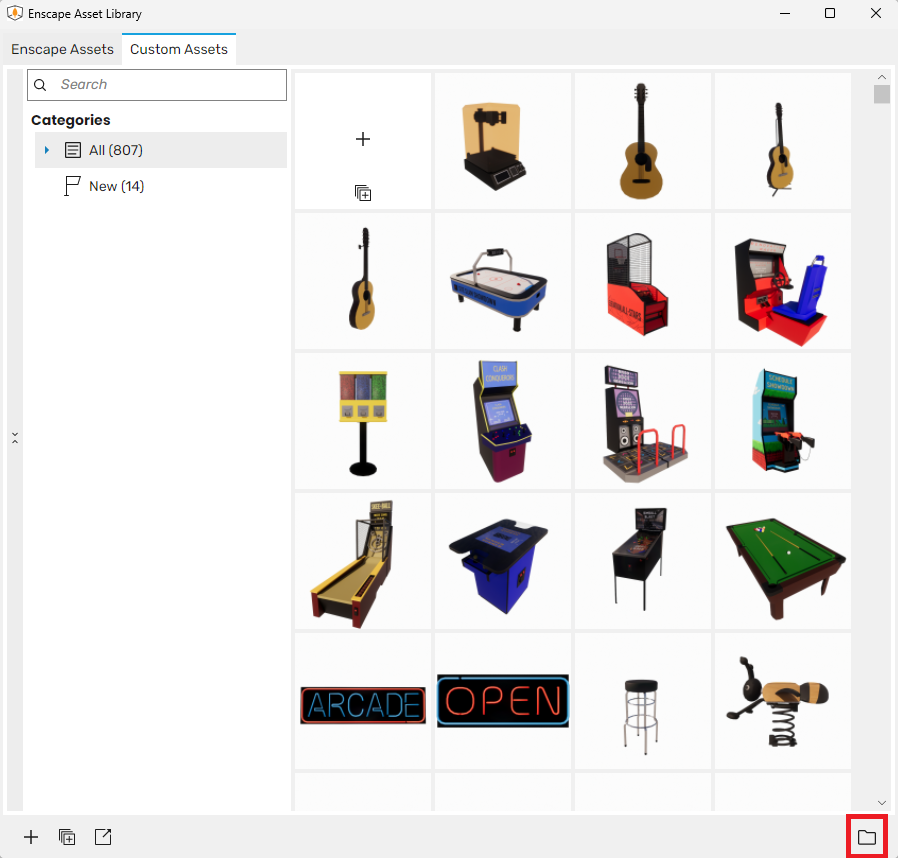
Not sure where your Custom Asset folder is set? Open the Enscape Asset Library and switch over to the Custom Assets tab. In the bottom right corner you’ll see a small folder icon. Click it and Enscape will open the folder it’s currently pointed to. That’s where your BIM Kits files need to go.
Copy and Paste into the Enscape Folder
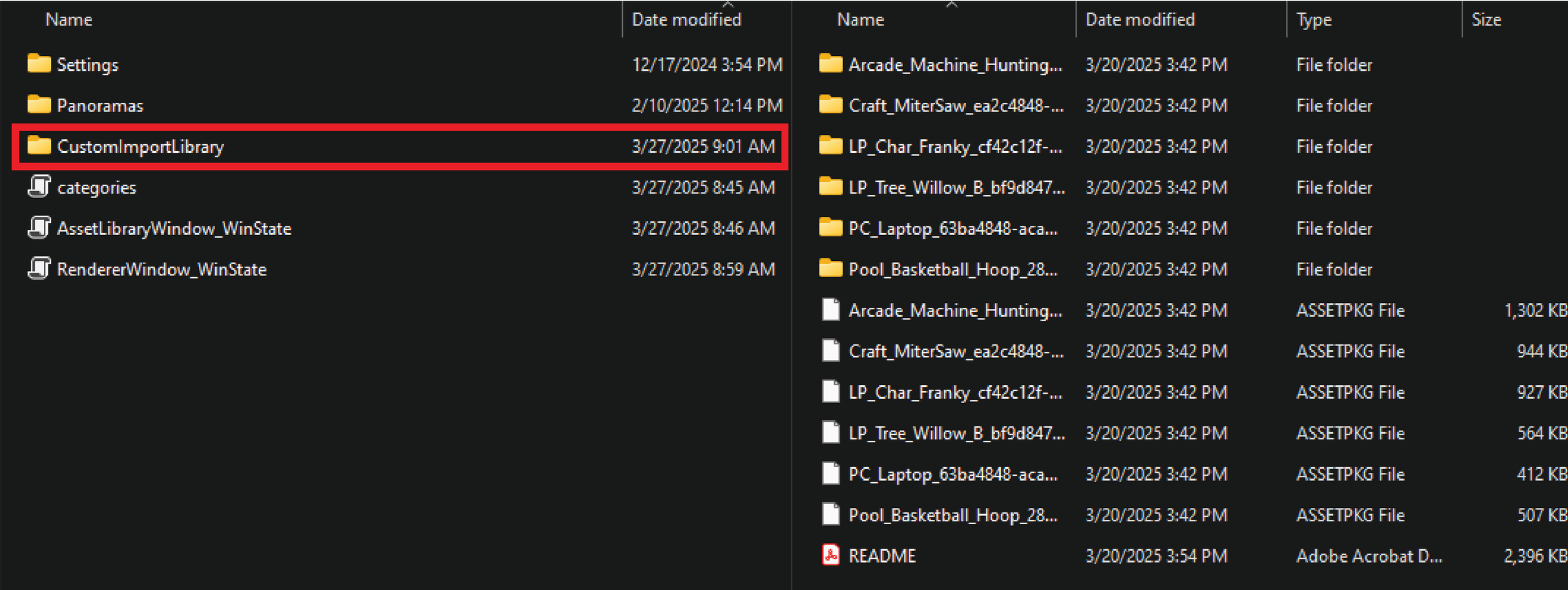
With both windows open side by side, select all the files from your BIM Kits .ZIP folder and copy them into the Custom Asset folder. That includes both the named folders and the .ASSETPKG files. You can do this all at once. No need to sort them or reorganize anything, just drop them all in.
Check Your Custom Asset Library
Head back into Enscape and open the Custom Asset Library. Your new assets should be showing up there and ready to place into your project. If you don’t see them right away, try clicking the refresh button or closing and reopening the library.
Browse the full library of kits at bimkits.com. Revit Families, Enscape assets, and glTF content built for designers, engineers, and contractors. If you have any questions, comments, or concerns please reach out to us through our FAQ page at bim kits, or send us an email at support@readthomas.com.