What You Get With A Revit Kit
Whether you're new to BIM Kits or just curious about what's inside, this post walks you through exactly what you receive when you purchase a Revit Kit. From the moment you download it to placing families in your project.
If you’re looking for a guide on how to open and import one of our Revit Families into your own project, you can find a step-by-step guide here.
What You See When Opening a Revit Kit
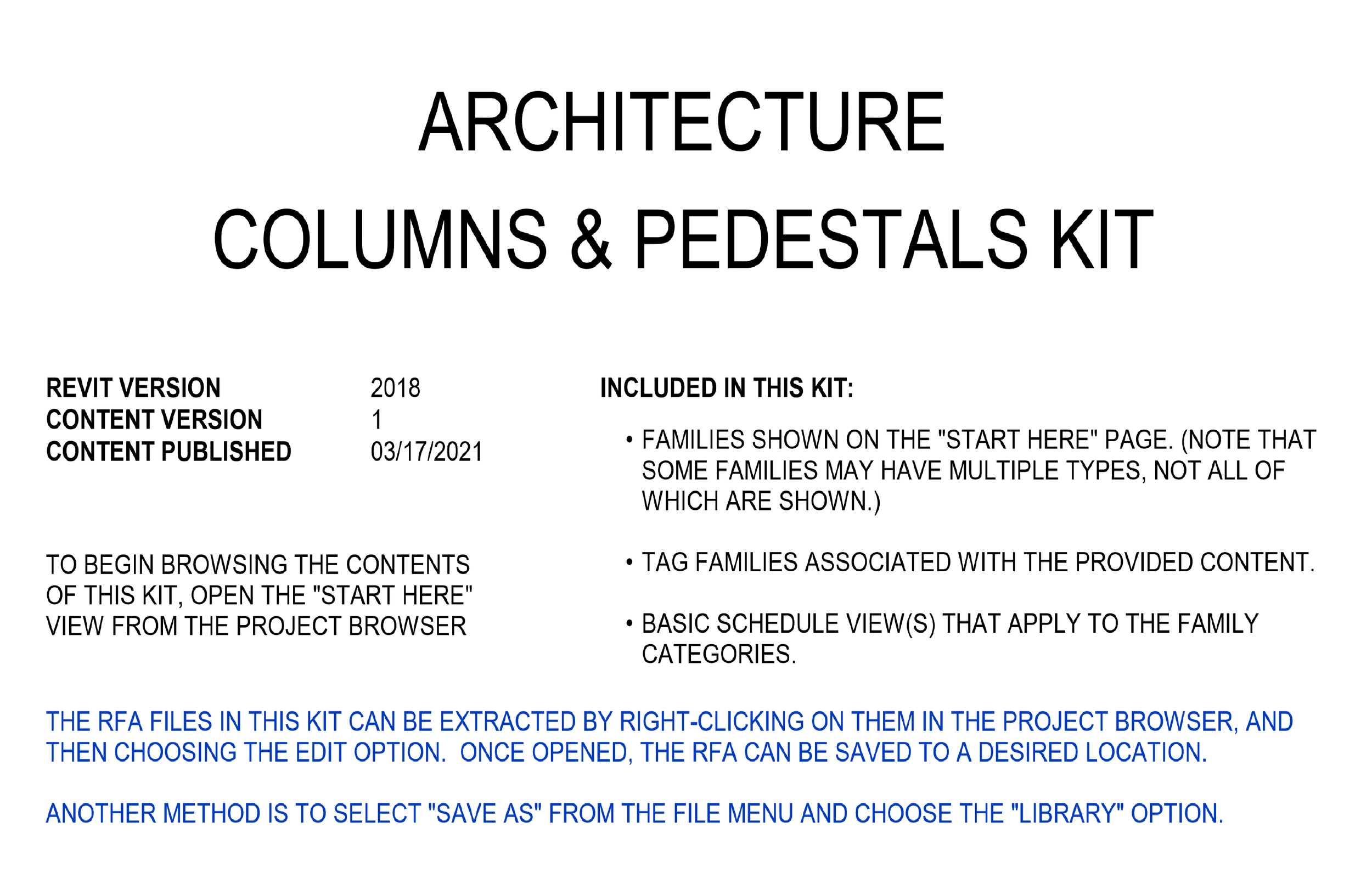
Upon purchasing, you'll get an email with a .ZIP file attached. Inside that ZIP is a Revit container file (.RVT) that does two things at once: it's an interactive guide to everything in the kit, and it's the source file where all the Families live.
Open the container file in Revit and you'll land on a cover page with the kit name, Revit version, content version, and publish date. It also gives you a quick overview of what's included and how to start navigating. To get into the content, open the "Start Here" view from the Project Browser.
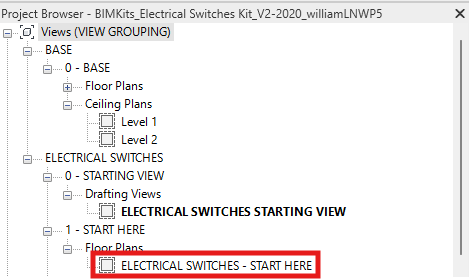
The "Start Here" View and Symbols Legend
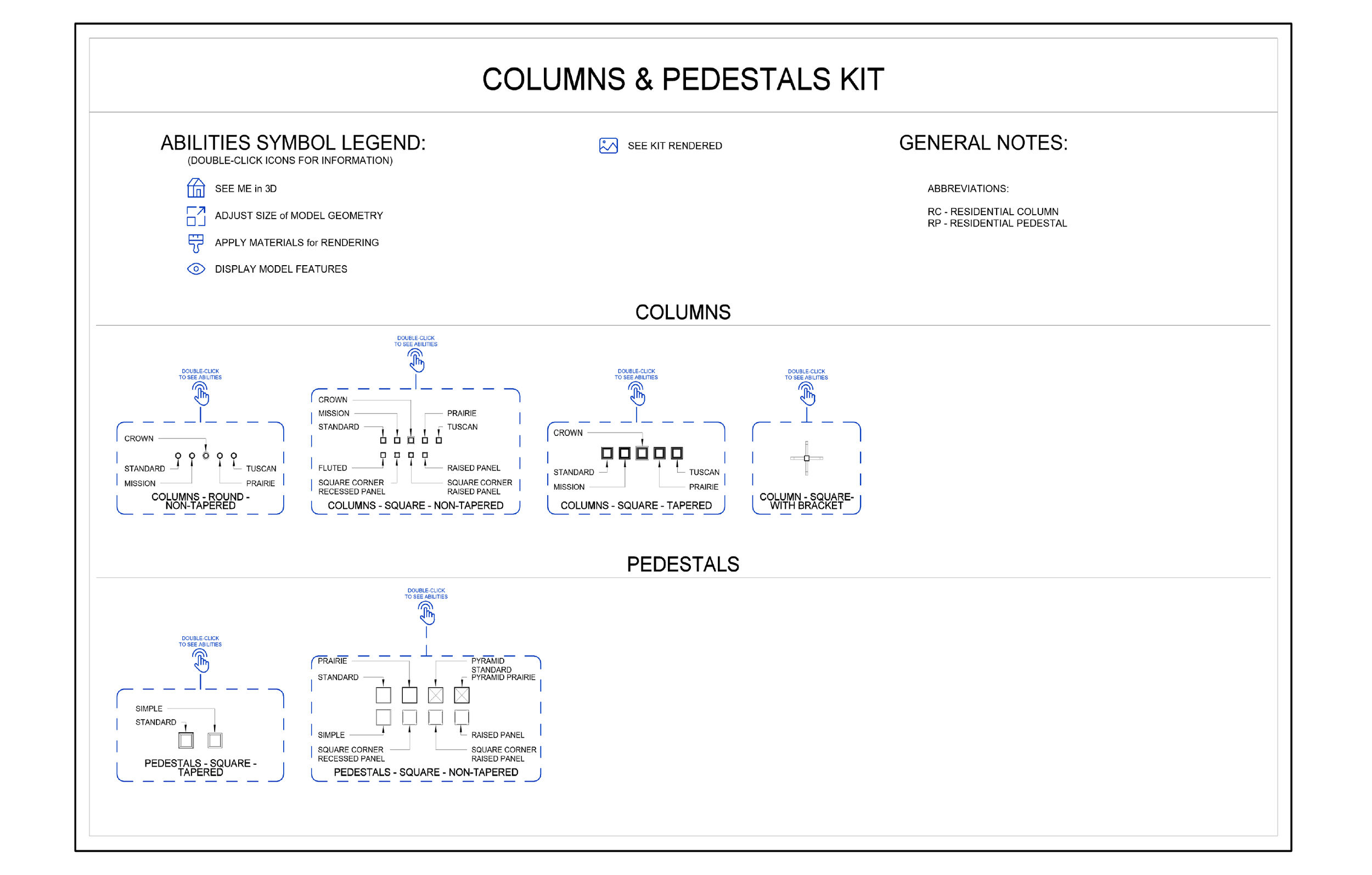
Think of the Start Here view as your home base. It lays out all the assets, notes, and legends in the kit so you can get your bearings and figure out exactly what you’re working with before you start placing anything.
Ability Symbol Legend Overview
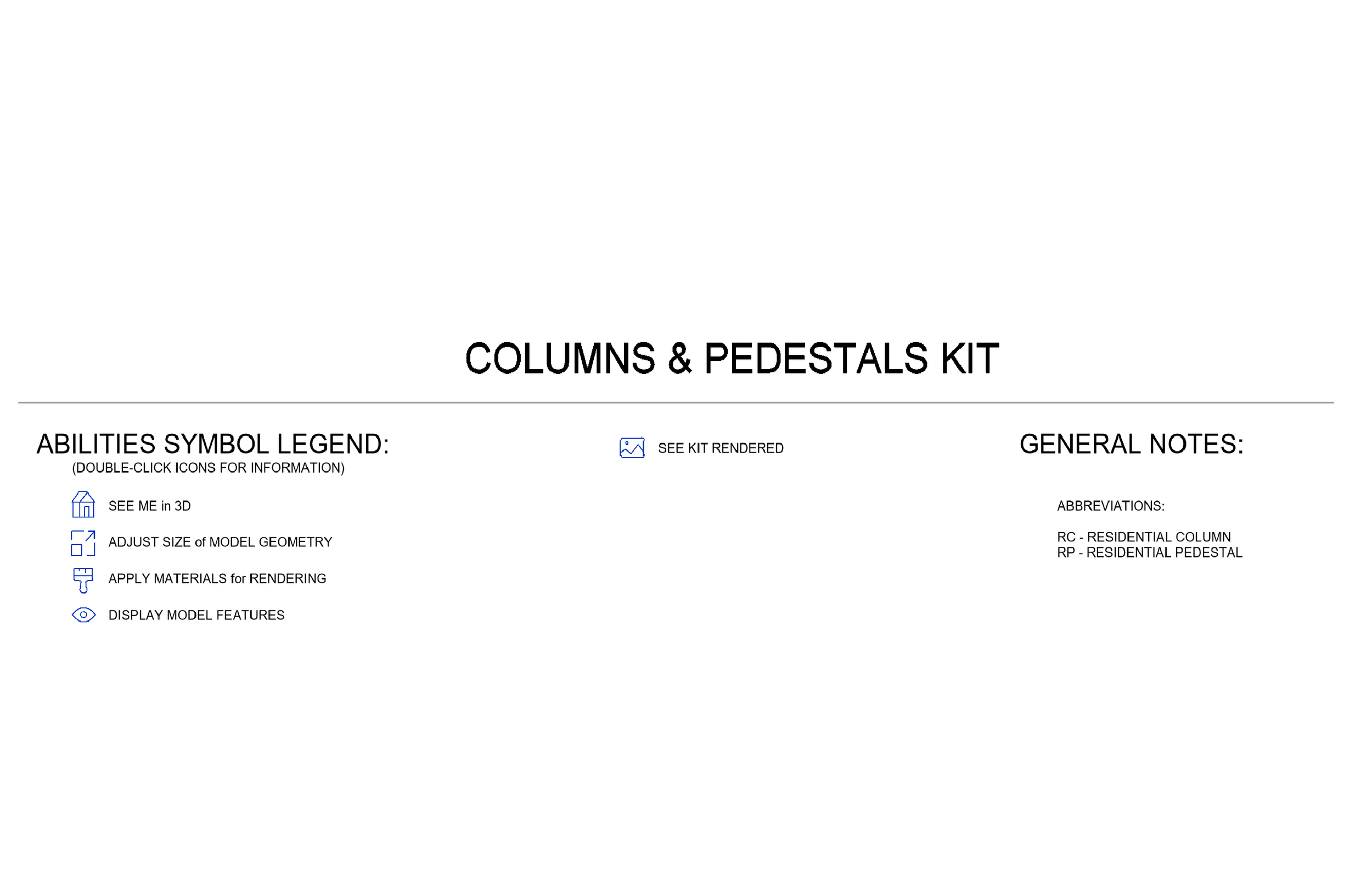
Every kit includes a Symbols Legend that explains what each icon means and covers any abbreviations used throughout. The goal here is simple: you should know what a family can do before you ever load it into a project. The Symbols Legend makes sure that's always the case.
Double Click to See Content Abilities
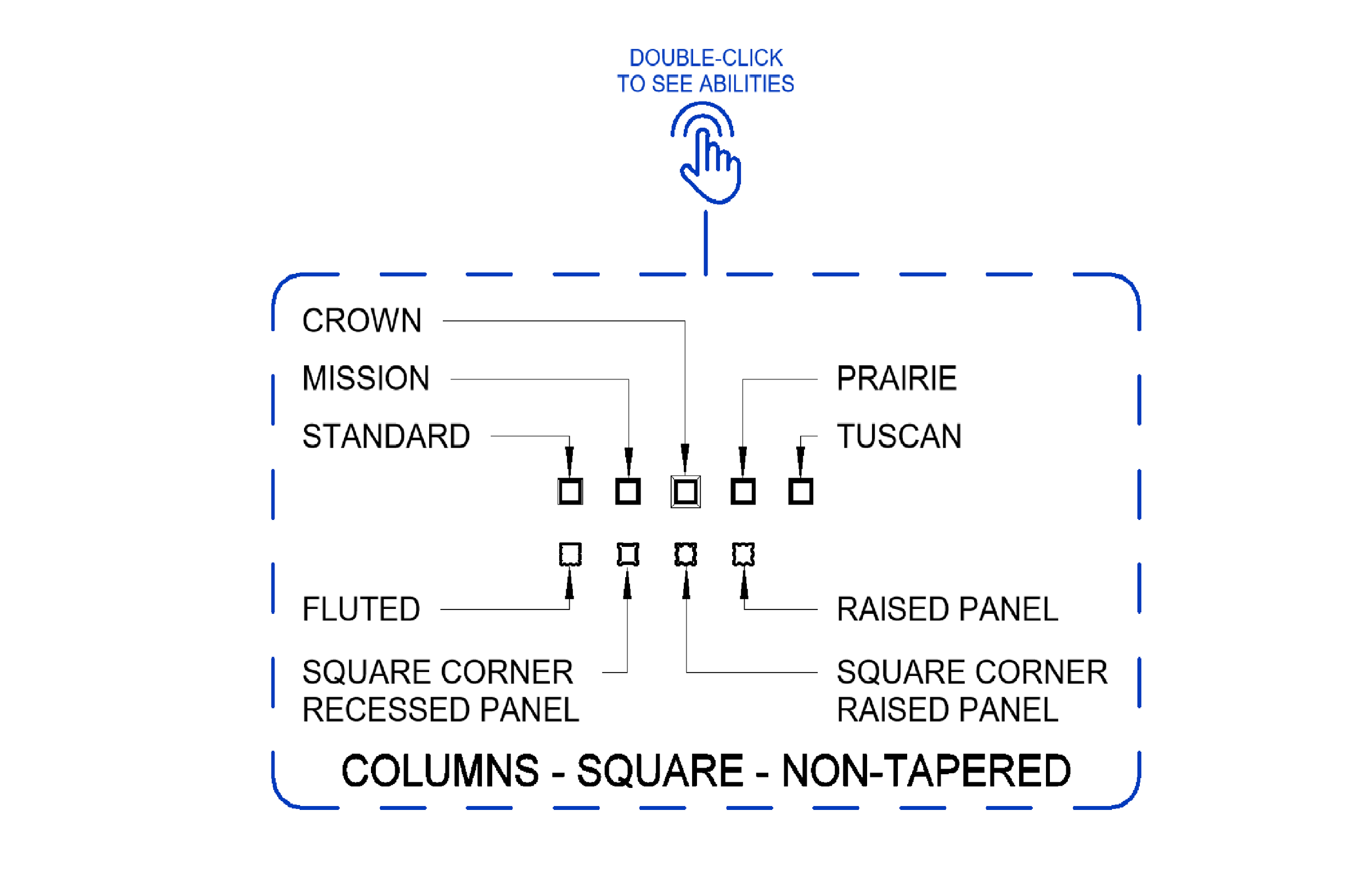
When you zoom into a group of content, you'll see a blue prompt that reads "DOUBLE CLICK TO SEE ABILITIES." This takes you deeper into that specific family and shows you the parameters and configurations available, so there are no surprises when you bring it into your project.
Content Abilities aka "Parameters"
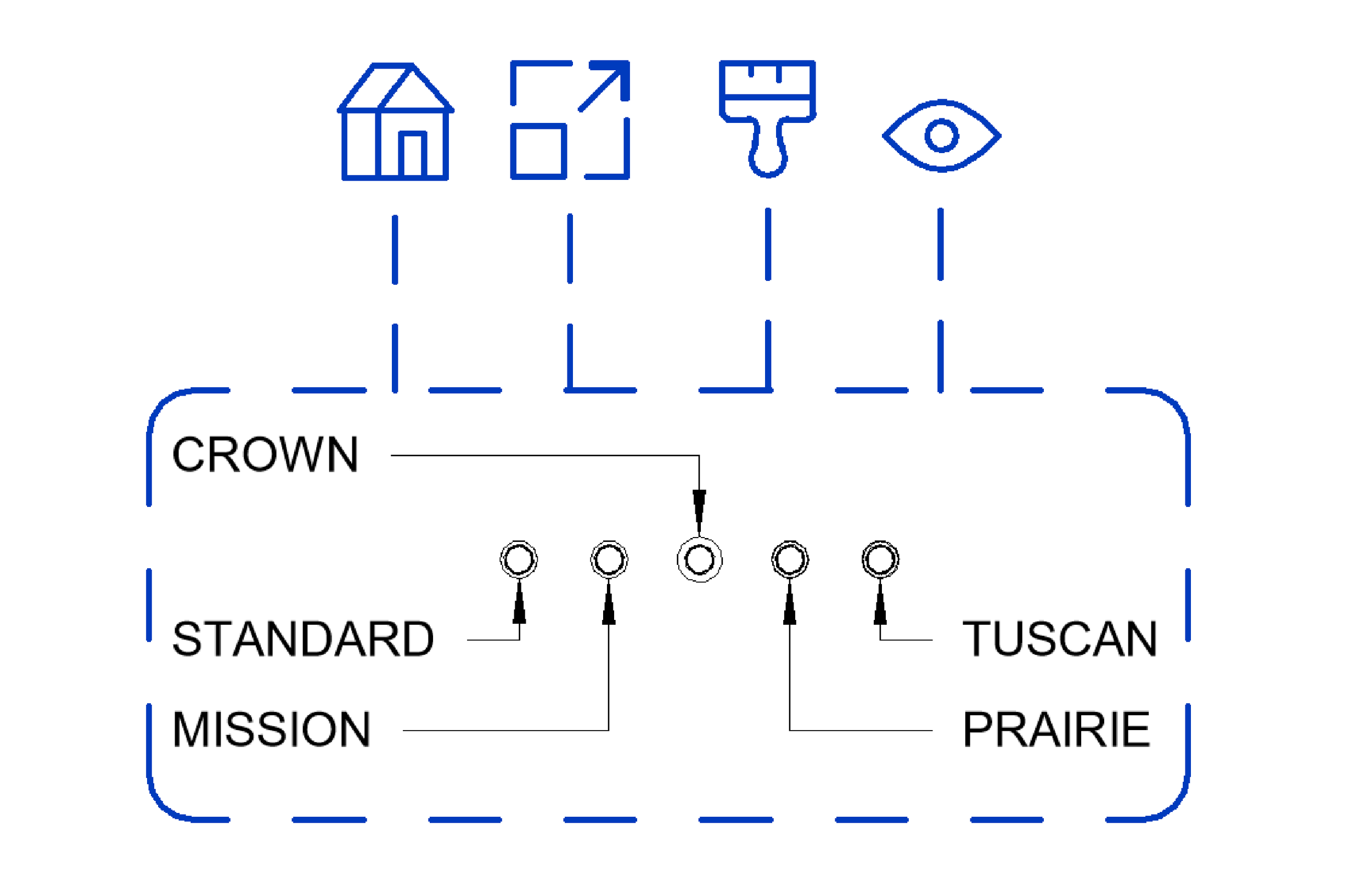
Once you click through, you'll see a view that lays out all the things that Family can do. Size, Material, Visibility, and whatever else applies are all listed out clearly. You'll know exactly what you can adjust before the Family is ever brought into your project.
Showcasing Content Abilities
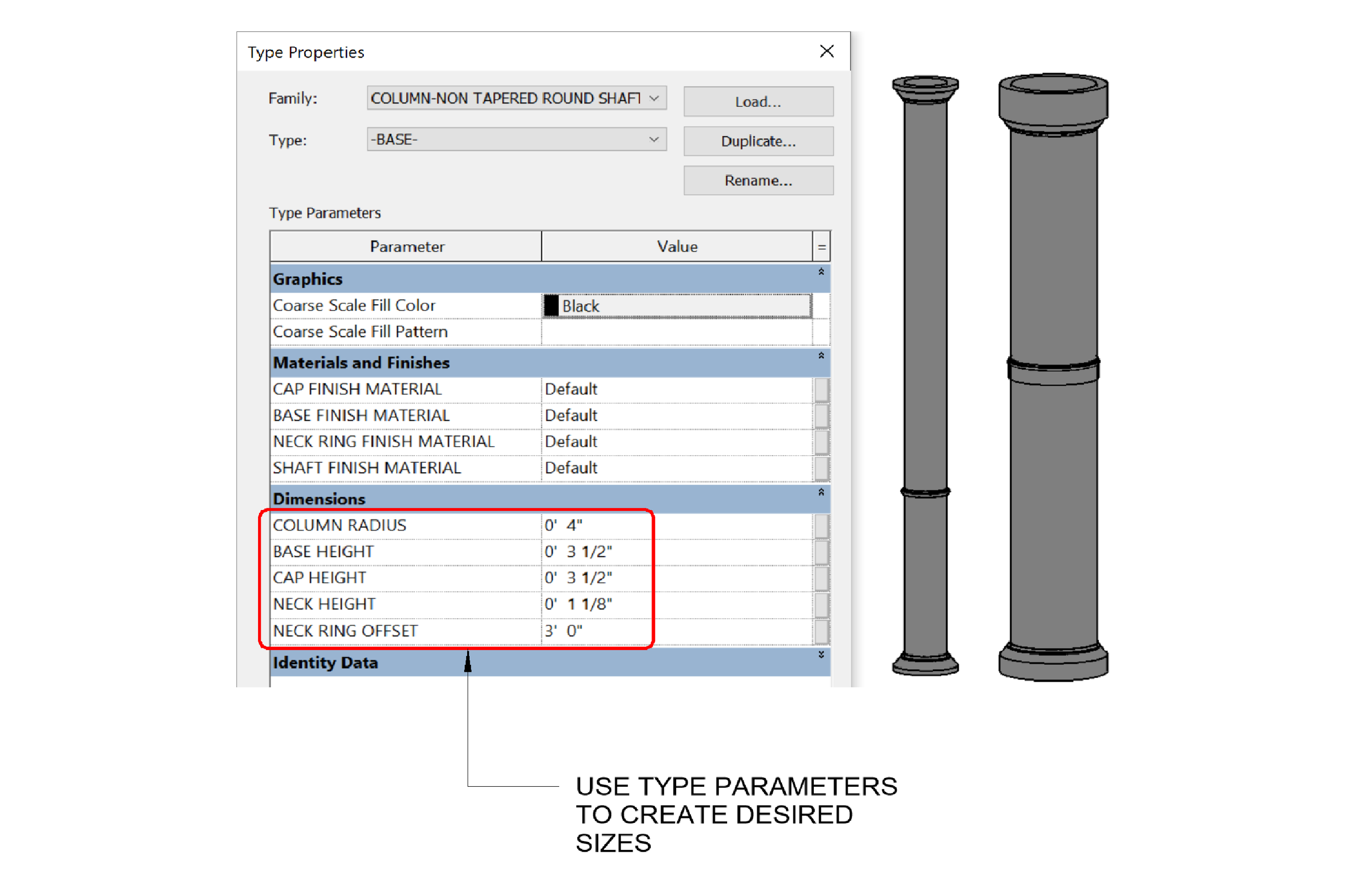
Click on a specific ability, like "Adjust Size," and you'll land in a view that shows exactly how that parameter works. From here you can use Type Parameters to set the dimensions you need directly in the Family before loading it. No guessing, no going back and forth.
Extracting Families
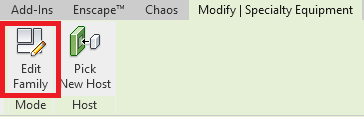
Need just the family file on its own? Click on the Family, then hit Edit Family in the panel. That opens it in the Family Editor. From there, just Save As and you've got the individual .RFA file ready to go wherever you need it.
Browse the full library of kits at bimkits.com. Revit Families, Enscape assets, and glTF content built for designers, engineers, and contractors. If you have any questions, comments, or concerns please reach out to us through our FAQ page at bim kits, or send us an email at support@readthomas.com.